
CSS Anchor Positioning: A Practical Guide for Developers
Learn how CSS anchor positioning can place tooltips and menus, add fallback positions, and keep your interface usable across browsers.
CSS anchor positioning lets you place a tooltip, menu, or popover in relation to another element using CSS. It can reduce custom positioning code and help an element move to a fallback position when space is tight. Treat it as progressive enhancement: provide a usable fallback, then add anchor positioning where the browser supports it.
- Use CSS anchor positioning for UI elements that need to stay beside a trigger.
- Give the trigger an anchor name and connect the positioned element to it.
- Use fallback positions to help avoid clipping near screen edges.
- Keep essential content and interactions usable without the feature.
Why CSS anchor positioning matters
Menus and tooltips often need to appear beside a button or link. Traditionally, JavaScript measures the trigger, calculates coordinates, and updates the floating element when the page changes. Libraries can handle this well, but simple cases may need less custom code with CSS anchor positioning.
The feature lets one element act as an anchor and another element position itself in relation to that anchor. CSS can also describe alternate placements. When the preferred position would overflow, the browser can try another option.
This is useful for small interface features, such as a help tooltip beside an icon or a compact action menu. It does not replace every positioning library. Complex overlays may still need JavaScript for collision rules, focus handling, dismissal, and other behavior.
For broader site updates, start with a clear design and technical plan. Herby Design offers website design and development for businesses planning new or improved sites.
How CSS anchor positioning works
First, name the element that other content should follow. Then, connect a second element to that name. The positioned element can use CSS properties to select its placement relative to the anchor.
Here is a minimal example. The button is the anchor, and the help text is positioned beside it:
.help-trigger {
  anchor-name: --help-trigger;
}

.help-popover {
  position: absolute;
  position-anchor: --help-trigger;
  position-area: right;
}
In this example, anchor-name creates a named anchor. The position-anchor property connects the popover to it. The position-area property places the popover to the right.
These declarations handle positioning only. You still need to decide how the popover opens, how keyboard users reach it, and how it closes. For a native popover interface, consider the browser’s Popover API as a separate part of the implementation.
Build a basic tooltip with a fallback
Progressive enhancement means the basic experience works first, and newer browser features improve it when available. For a tooltip, that means keeping its content accessible and giving it a sensible position even when anchor positioning is unsupported.
Start with a wrapper that contains the trigger and tooltip. Use ordinary positioning as a fallback, then apply anchor-specific rules inside a feature query:
.help-wrap {
  position: relative;
  display: inline-block;
}

.help-tip {
  position: absolute;
  left: 100%;
  top: 0;
  margin-left: 0.5rem;
  max-width: 16rem;
}

@supports (anchor-name: --help-trigger) {
  .help-trigger {
    anchor-name: --help-trigger;
  }

  .help-tip {
    position: fixed;
    position-anchor: --help-trigger;
    position-area: right;
    margin: 0;
  }
}
The fallback in this sketch places the tooltip beside its wrapper. Adapt it to your layout and test it with the real content. The feature query checks whether the browser understands the anchor-name property; it does not prove every related feature behaves identically in every browser.
Make sure the tooltip does not cover the trigger or important page content. If the help text is essential, do not rely on a hover-only interaction. Provide an accessible way to reveal it, such as a button that works with a keyboard and touch input.
Keep the popover on screen with fallback positions
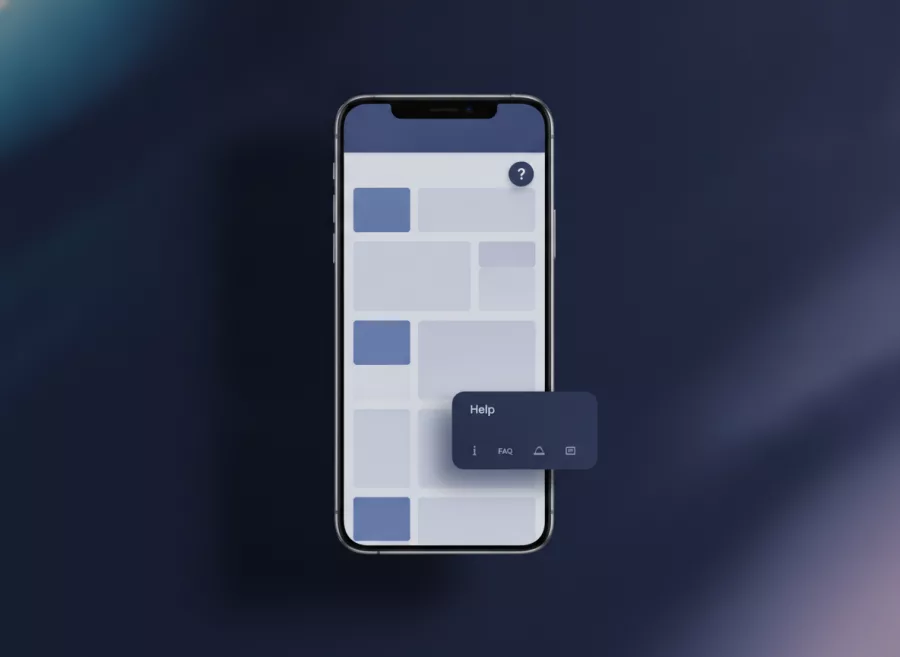
A tooltip placed to the right may run past the edge of a narrow screen. CSS anchor positioning includes mechanisms for trying alternate positions when the preferred one does not fit. This can reduce the need to calculate every placement in JavaScript.
One approach is to define a fallback rule and let the browser try it when the first placement causes overflow:
@supports (anchor-name: --help-trigger) {
  .help-trigger {
    anchor-name: --help-trigger;
  }

  .help-tip {
    position: fixed;
    position-anchor: --help-trigger;
    position-area: right;
    position-try-fallbacks: flip-inline;
  }
}
Fallback behavior depends on the properties and browser support available to your users. Test the result at different viewport sizes, zoom levels, and writing directions. A fallback that works on a desktop may still need adjustment on a small phone.
Keep the panel compact and avoid placing it over controls that the user needs to reach. For large menus or complex dialogs, use a design and interaction pattern made for that task rather than treating every overlay as a tooltip.

Check support and test the real interaction
CSS anchor positioning is a newer browser feature, so support can vary by browser version and by individual sub-feature. MDN’s guide describes the feature and its available mechanisms. Check the current compatibility data for your target browsers before relying on a specific declaration.
Use MDN’s CSS anchor positioning guide as a reference, and verify behavior in the browsers your audience uses. A feature query is a useful guard, but real-device testing remains important.
Test at least these cases:
- The trigger appears near every edge of the viewport.
- The page scrolls while the panel is open.
- The user zooms in or uses a narrow screen.
- The panel content is longer than expected.
- The user opens and closes the control with a keyboard and touch input.
- The feature is unavailable, so the fallback is still understandable.
Watch for clipping caused by ancestor containers and stacking contexts. Also check that your panel does not appear in the wrong place when the same anchor name is used more than once. Unique, clear names make the relationship easier to maintain.
Know when to use JavaScript instead
Anchor positioning is a strong option when a small element needs a direct relationship to a visible anchor. It is not a complete overlay system. A tooltip, dropdown, modal, and context menu have different accessibility and interaction needs.
Use JavaScript or a well-tested component when you need advanced collision handling, custom scrolling behavior, focus management, or precise control across many layouts. The browser feature can still be part of the solution, but test each behavior rather than assuming positioning alone is enough.
For a business site, keep the user’s task in view. A menu should remain easy to open and use. A tooltip should explain a control without hiding it. If you are building a larger application, Herby Design’s custom web application development service can help plan the interface and its technical needs.
For related front-end planning, see our guide to mobile-first responsive design. If your implementation is already live, website maintenance and technical support can help keep it reliable as browsers change.
Frequently asked questions
What is CSS anchor positioning?
It is a CSS feature for positioning one element in relation to another named element. It can also offer alternate placements when the preferred position does not fit.
Does CSS anchor positioning replace JavaScript?
Not in every case. It can handle basic positioning, but complex overlays may still need JavaScript for interaction, focus, or advanced placement behavior.
How can I provide a fallback?
Set a simple default position first, then add anchor-specific declarations inside an @supports rule. Test both paths in real browsers.
Is anchor positioning suitable for mobile menus?
It may help position a small menu, but test touch interaction, screen edges, scrolling, and keyboard access. A full navigation menu may need a dedicated responsive pattern.
Where can I check current browser support?
Check the compatibility information linked from MDN’s anchor positioning guide, then test the specific properties your design uses.
Conclusion
CSS anchor positioning can simplify small, anchored interface elements, especially when paired with fallback placements and careful testing. Start with a working basic experience, enhance it where supported, and verify keyboard and mobile use. Need help planning a reliable website or web application? Contact Herby Design to discuss your project.
Found this helpful? Share it
Need help with your website?
I build fast, SEO-ready websites and web applications.